Introduction
Takeover lets a support associate step into an ongoing AI conversation and convert it into a help desk ticket. Once taken over, the AI stops responding and the support associate handles the rest of the conversation directly. This is useful when a customer’s issue is too complex for the AI, requires a personal touch, or needs escalation. Takeover is available on the Chat bubble, Email, WhatsApp, Messenger, and Instagram channels.How It Works
When a support associate takes over a conversation, the system:- Stops the AI from responding to the customer
- Generates an AI-powered summary of the conversation
- Creates a help desk ticket linked to the conversation
- Assigns the ticket to the support associate who initiated the takeover
Taking Over a Conversation
1
Open the conversation
Open the Conversations tab in the help desk sidebar and select an ongoing conversation.
2
Click Takeover
Click the Takeover button in the conversation header. The button is only available for conversations that are currently ongoing.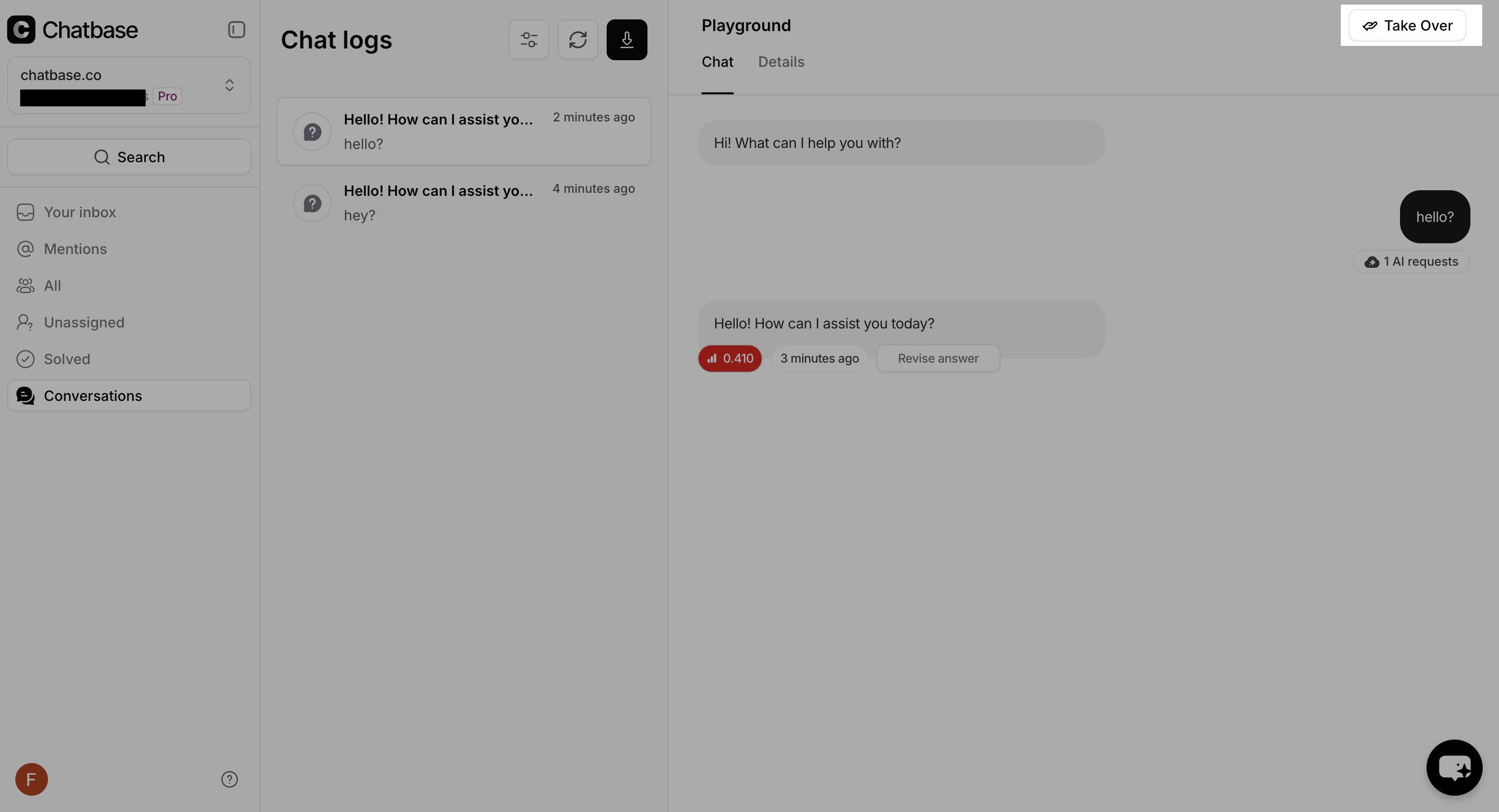
3
View the ticket
After takeover, the newly created help desk ticket opens in a new browser tab. The ticket includes: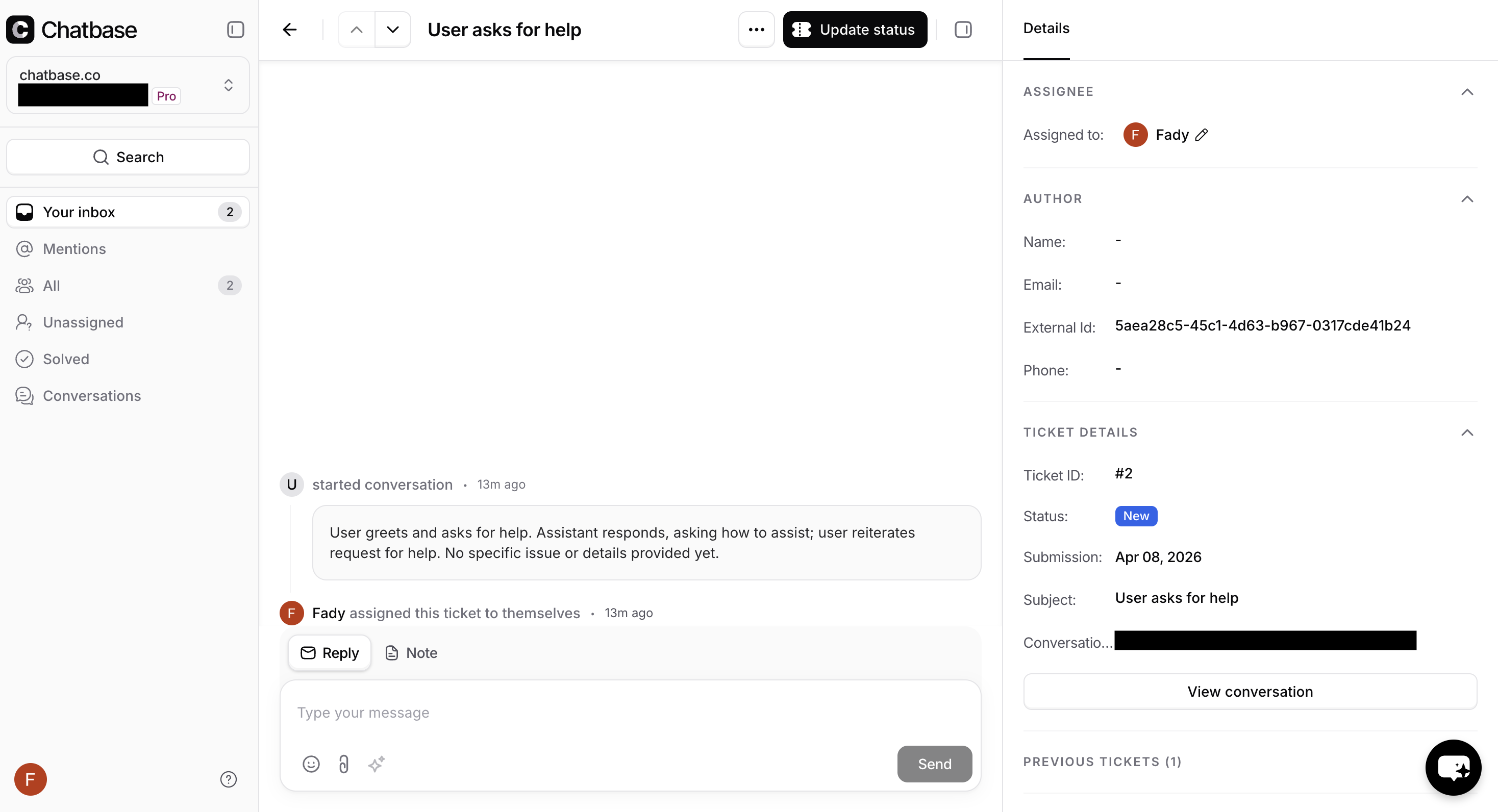
- An AI-generated subject line and summary based on the conversation
- Customer details (name, email, or other identifiers)
Conversation States
Every conversation has an activity state that determines whether takeover is available:Ongoing
Ongoing
The conversation is active and the AI is responding. Takeover is available.
Taken Over
Taken Over
A support associate has already taken over the conversation. The Takeover button is replaced with a View Ticket button that links to the associated help desk ticket.
Ended
Ended
The conversation has ended. Takeover is not available.
AI-Generated Summary
When a conversation is taken over, the system uses AI to generate a summary so the support associate can quickly understand the context without reading the entire conversation. The summary includes:- A subject line for the ticket
- A brief summary of the customer’s issue
What the Customer Sees
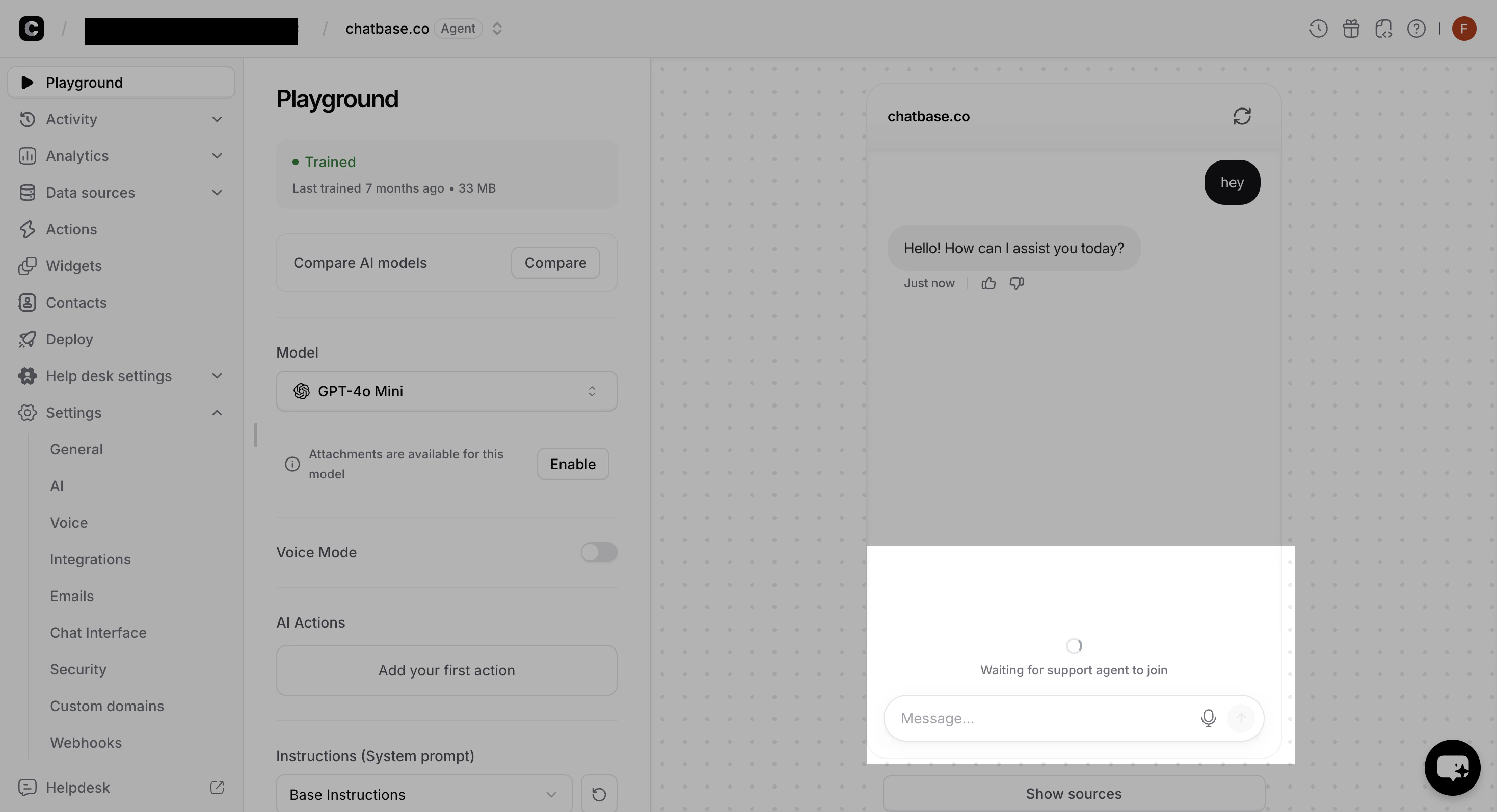
On chat channels (such as the widget), the customer receives real-time feedback when a takeover happens:- The AI stops responding immediately
- A loading spinner appears with the message “Waiting for support agent to join”
- Once the support associate sends their first message, the spinner disappears and the conversation continues as a live chat
The waiting message is automatically displayed in the customer’s language. See Localization for more details.
Allow AI Replies
After taking over a conversation, you can re-enable the AI at any time by clicking Allow AI replies. This hands the conversation back to the AI so it can continue responding to the customer.1
Open the ticket
Open the taken-over ticket from the help desk.
2
Click the menu
Click the three-dot menu (⋯) in the ticket header.
3
Select Allow AI replies
Click Allow AI replies. The AI resumes responding to the customer and the ticket is automatically closed.
Multiple Takeovers
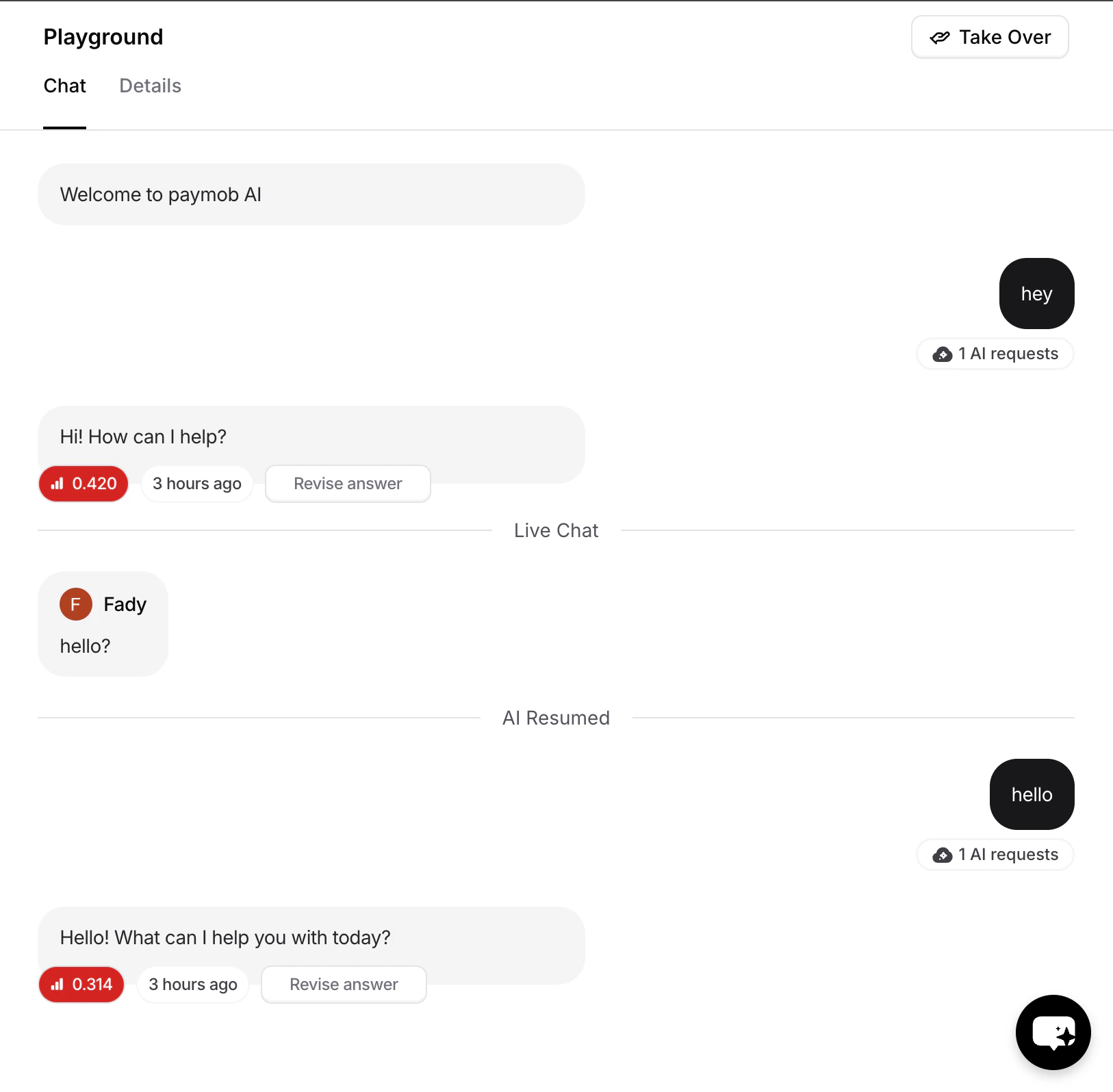
A single conversation can go through multiple takeover and AI resume cycles. Each time, the conversation is clearly divided into sections so both the support associate and the customer can follow the flow:- A “Live chat” separator marks where a support associate took over
- An “AI Resumed” separator marks where the AI was re-enabled
- Customer chats with the AI
- Support associate takes over → Live chat separator appears
- Support associate resolves part of the issue and clicks Allow AI replies → AI Resumed separator appears
- Customer continues chatting with the AI
- A new issue arises and another support associate takes over → another Live chat separator appears