

Introduction
Translation lets your support team communicate with customers regardless of the language they write in. When enabled, the helpdesk automatically detects the language of incoming customer messages and offers one-click translation into your team’s preferred language. Only customer messages are translated. Agent replies remain in the language the agent writes them in.Enable Translation
1
Open translation settings
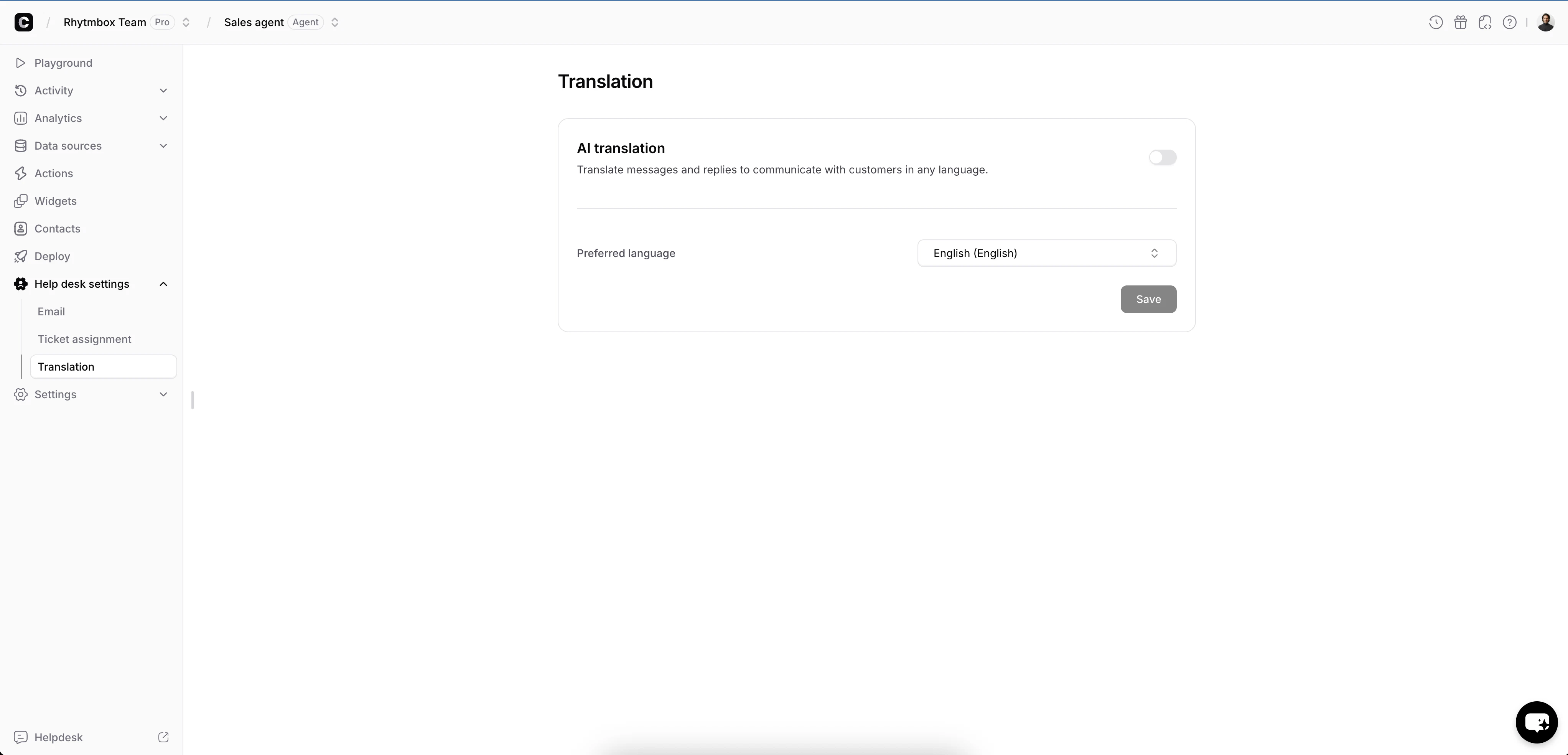
Navigate to Settings > Helpdesk > Translation.
2
Enable AI translation
3
Choose your preferred language
Select your team’s Preferred language from the dropdown - this is the language that customer messages will be translated into.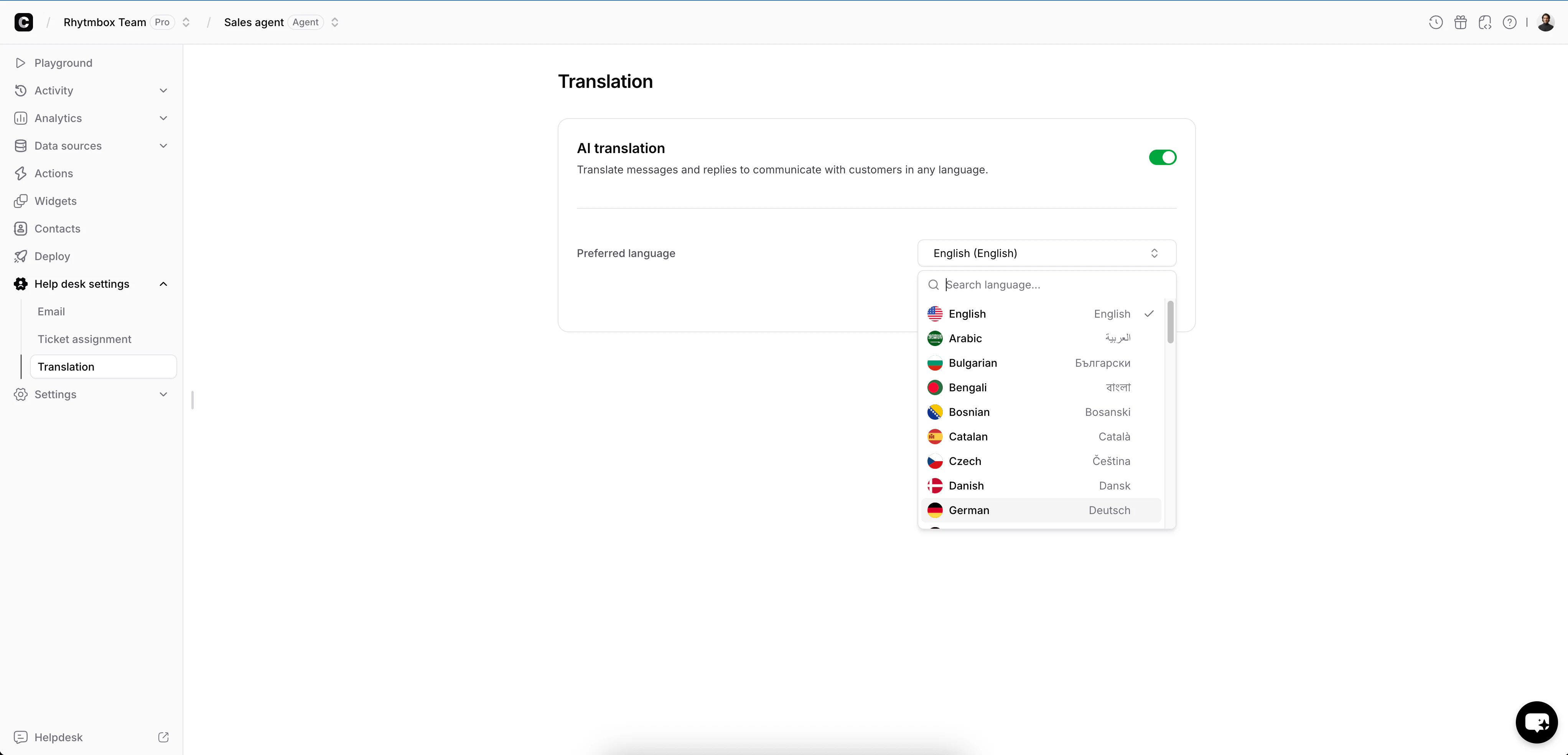
4
Save
Click Save to apply your settings. Translation is now active for all tickets.
How Translation Works in Tickets
When you open a ticket from a customer who wrote in a different language, the helpdesk automatically detects the language and shows a translation detection banner at the top of the ticket.Before Translation
The banner displays the detected language (e.g., “German detected”) along with a Translate button. Customer messages appear in their original language.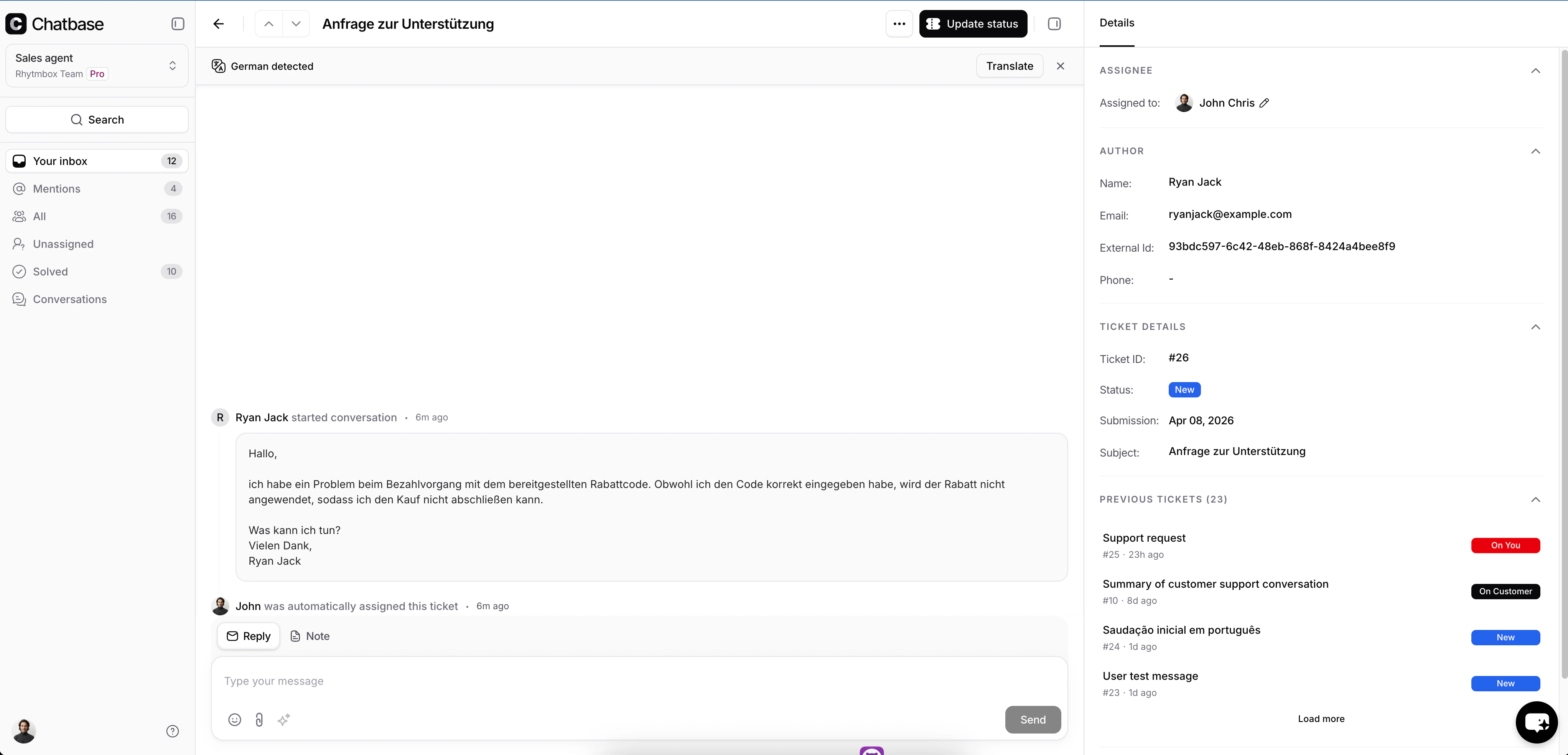
After Translation
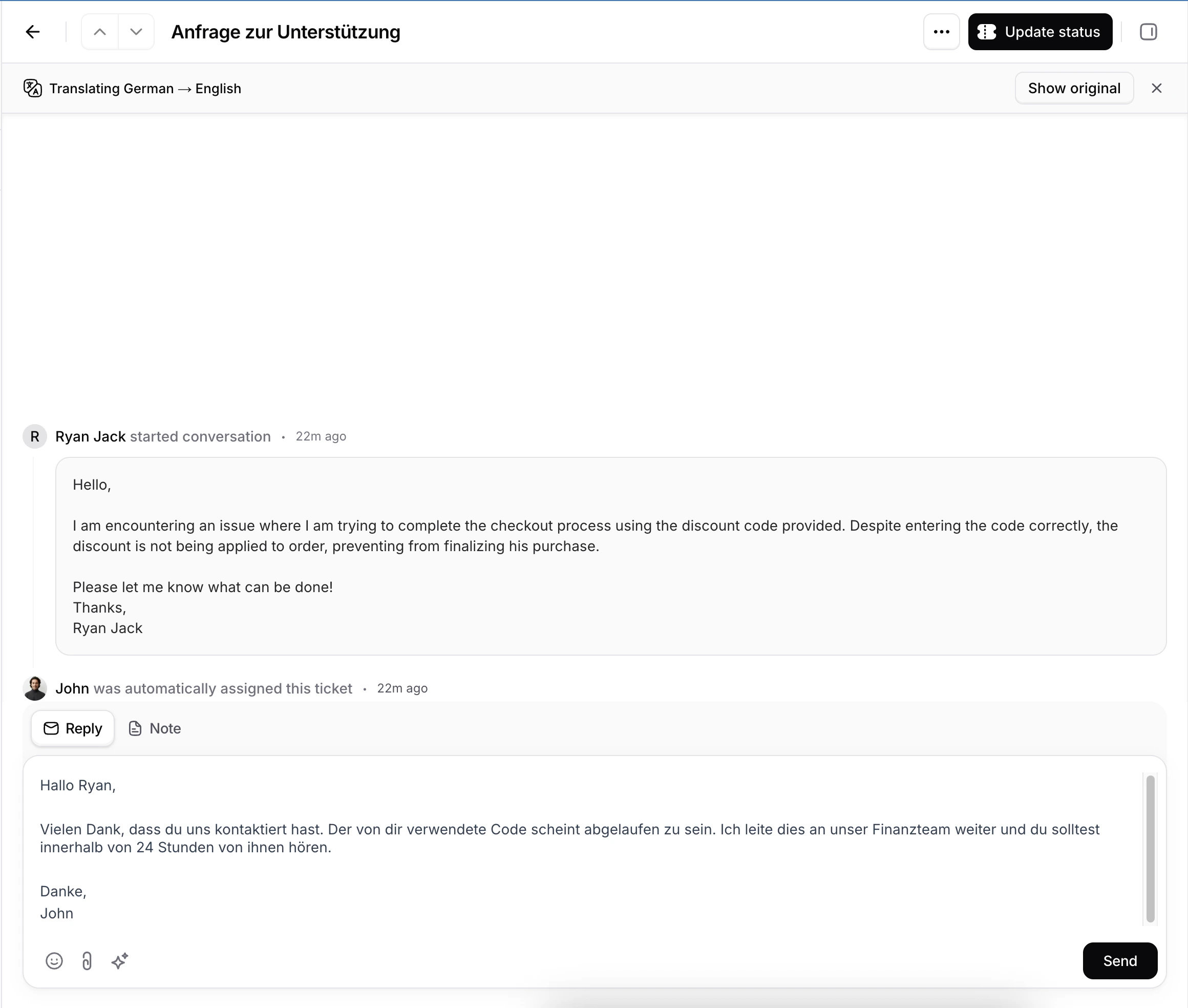
Click Translate to translate all customer messages into your preferred language. The banner updates to show the translation direction (e.g., “Translating German → English”) and a Show original button appears so you can switch back at any time.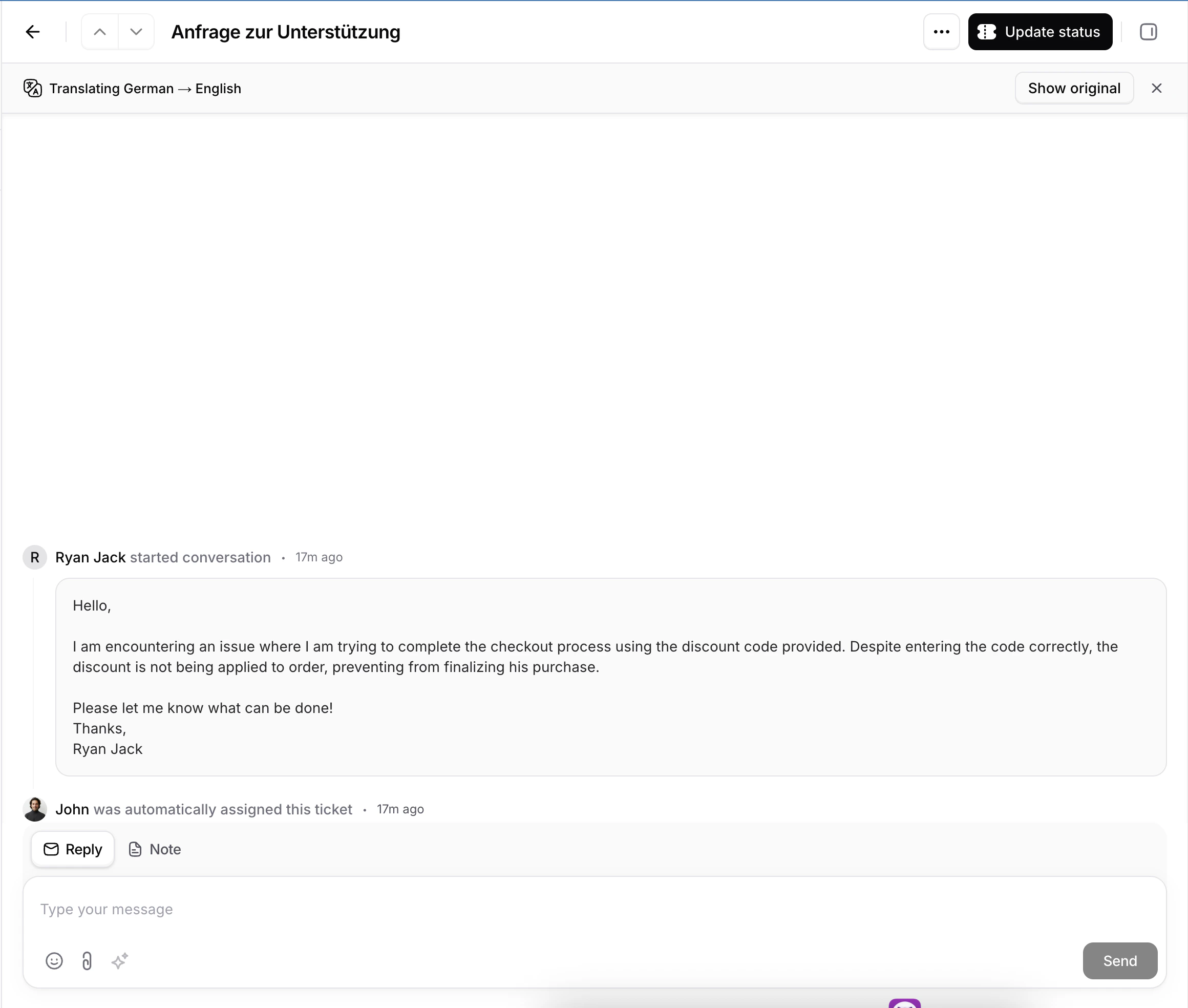
If you are viewing a ticket with an active live chat, new incoming messages from the customer will be translated automatically as they arrive - no need to click Translate again.
Toggle Between Original and Translated
You can switch between the original and translated versions at any time using the buttons in the translation banner:- Show original - displays the customer’s messages in their original language
- Translate - switches back to the translated view
What Gets Translated
Only customer messages are translated. Your replies are sent to the customer exactly as you write them. If you need to reply in the customer’s language, use the AI Compose > Translate option in the message composer.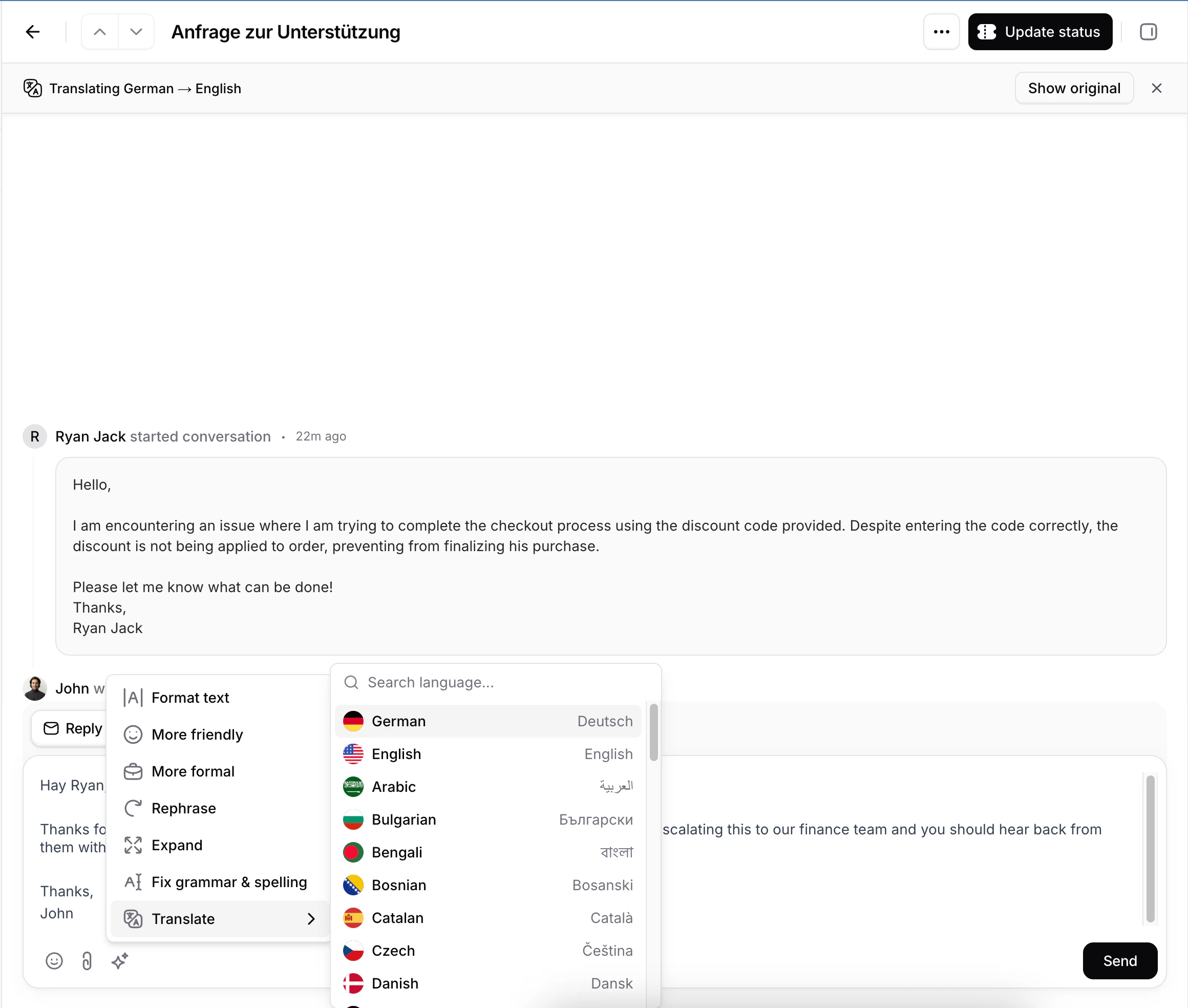
Supported Languages
Translation supports 44 languages, including:- Arabic
- Bengali
- Bulgarian
- Bosnian
- Catalan
- Chinese (Simplified)
- Chinese (Traditional)
- Croatian
- Czech
- Danish
- Dutch
- English
- Estonian
- Finnish
- French
- German
- Greek
- Hebrew
- Hindi
- Hungarian
- Indonesian
- Italian
- Japanese
- Korean
- Latvian
- Lithuanian
- Malay
- Mongolian
- Norwegian
- Persian
- Polish
- Portuguese
- Portuguese (Brazil)
- Romanian
- Russian
- Serbian
- Slovenian
- Spanish
- Swahili
- Swedish
- Thai
- Turkish
- Ukrainian
- Vietnamese