

How a test run works
Each run starts one or more conversations. In each conversation:- A simulated customer, played by another AI model, opens the conversation based on the scenario you wrote. It only knows the scenario and the conversation so far. It never sees your agent’s instructions or the success criterion.
- Your AI agent replies using its real setup: its instructions, data sources, actions, and procedures.
- They keep talking until the customer is done or the conversation reaches its max turns.
- A judge, another AI model, reads the finished conversation and decides whether it met your success criterion. The judge sees the messages and every action the agent called, with what it sent and what came back.
- If the test lists expected actions, Chatbase also checks which actions the agent called.
Tests never reach your customers. The conversations aren’t saved to your chat logs, and actions don’t run for real unless you set a read-only action to Live (see Action responses).
Create a test
On the Tests page, click Create a test.Expected actions
This field decides whether Chatbase checks the actions your agent calls. It behaves differently when it’s empty and when it has actions. Empty. This is the default. Chatbase doesn’t check actions. The agent can call any action, or none, and only the judge grades the conversation. Use this when the outcome is all that matters, for example “the agent explains the refund policy correctly”. The test’s Configuration tab shows Not asserted. With actions. The agent must call exactly the actions on the list. No more, no fewer. The action check fails if the agent:- never called an action on the list, or
- called an action that isn’t on the list.
A few rules for how the check counts calls:
- Order doesn’t matter.
- Calling the same action several times counts as one call.
- A call that returns an error still counts. The agent chose to call it.
- A procedure loading its own steps isn’t an action, so it never counts.
Action responses
By default, every action in a test returns a generic success without running, so a test never books a meeting, issues a refund, or creates a ticket. Add an action response to control what a specific action returns. Each action response is either:
Each action shows whether it only reads data (Read-only) or changes something (Writes data). Live is locked for actions that write data, and for custom actions, since Chatbase can’t tell what your API does.
These actions can run live:
- Stripe: get subscription info, get invoices, find payments
- Shopify: show products, show order, get cart, get metafields
- Cal.com and Calendly: get available slots
- Web search
A live action uses your connected account, for example your Stripe or Cal.com account, the same way it would in a real conversation.
Run a test
- From the editor: click Save and run to start 3 conversations, or open the menu next to it to choose 1, 3, 5, 10, or 20.
- From the Tests page: select one or more tests, click Run selected, and choose how many times to run each one.
- From a test’s row: open the ⋯ menu and click Run test.
- From a test’s page: click Run again, or open the menu next to it to choose how many times.
Manage tests
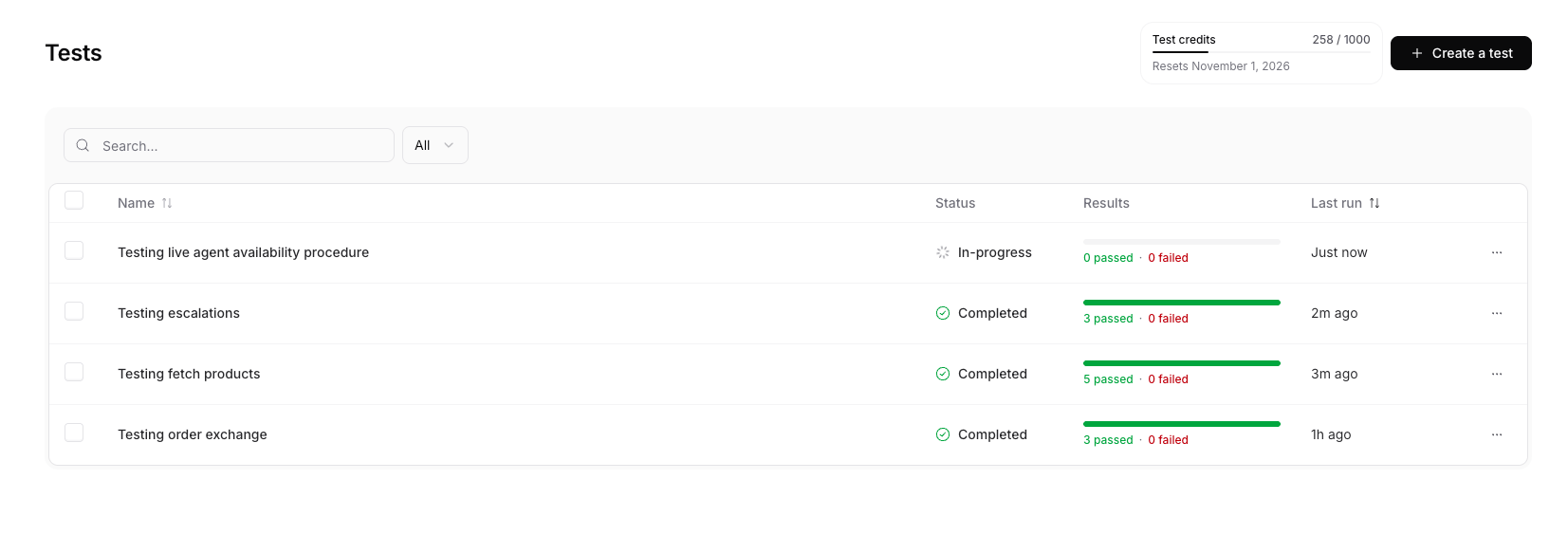
On the Tests page, search tests by name or filter them by status: Completed, In-progress, or Never run. Open the ⋯ menu on a test’s row to:- Edit test: change its setup. The next run uses the new setup.
- Run test: start a run.
- Duplicate test: open the editor with a copy of the test, so you can make a variation.
- Export results: download the latest run as a CSV file.
- Delete test: remove the test and its run history. This can’t be undone.
Read the results
Open a test to see its latest run.- Pass rate: the share of graded conversations that passed. Conversations with No verdict aren’t counted, since they say nothing about your agent.
- Runs completed: how many of the run’s conversations have finished.
- Runs table: one row per conversation, with its status, the number of turns, the actions the agent called, and how long it took.
Click a row to open the conversation. The judge’s reason for its verdict is at the top. If the action check failed, Never called and Not expected sit under it. Under each agent reply, Completed N actions lists the actions the agent called. Click an action to see what it returned, labelled Mocked response or Response.
The Configuration tab shows the test’s setup, including its expected actions and action responses.
To share or analyse results elsewhere, click Export results. The CSV has one row per conversation with its status, turns, the actions called, missing, and unexpected, the time it took, the judge’s reason, and any error.
Test credits
Test credits are free credits added to your account every month, on top of your message credits. Tests use them first, so you can test your agent without spending message credits.- Test credits reset on the 1st of each month, at midnight UTC. Unused credits don’t carry over.
- They belong to your account, so all AI agents in the account share them.
- Only your agent’s replies use credits, the same amount as a reply in a real conversation. The simulated customer and the judge are free.
On the Free plan, tests use message credits from the start.
The Tests page shows how many test credits you’ve used this month and when they reset.
When your test credits run out, tests use your message credits. Before a run that could use them, Chatbase shows how many test credits you have left, the most the run can use, and how much of that could come from message credits. Click Run anyway to start it. The real cost is usually lower, since it depends on how many turns each conversation takes.
When both are used up, you can’t start new runs until your test credits reset or you add message credits.