

Introduction
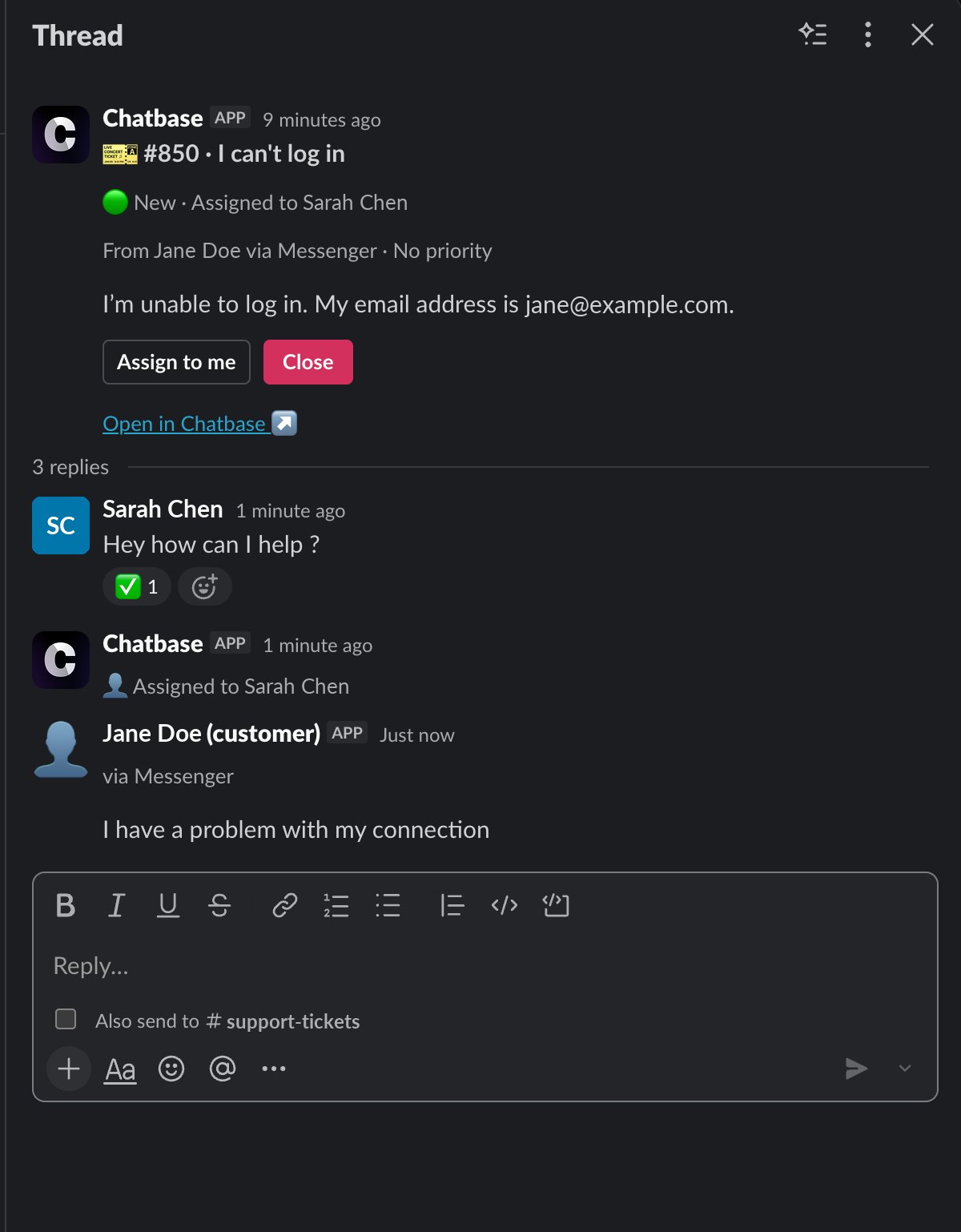
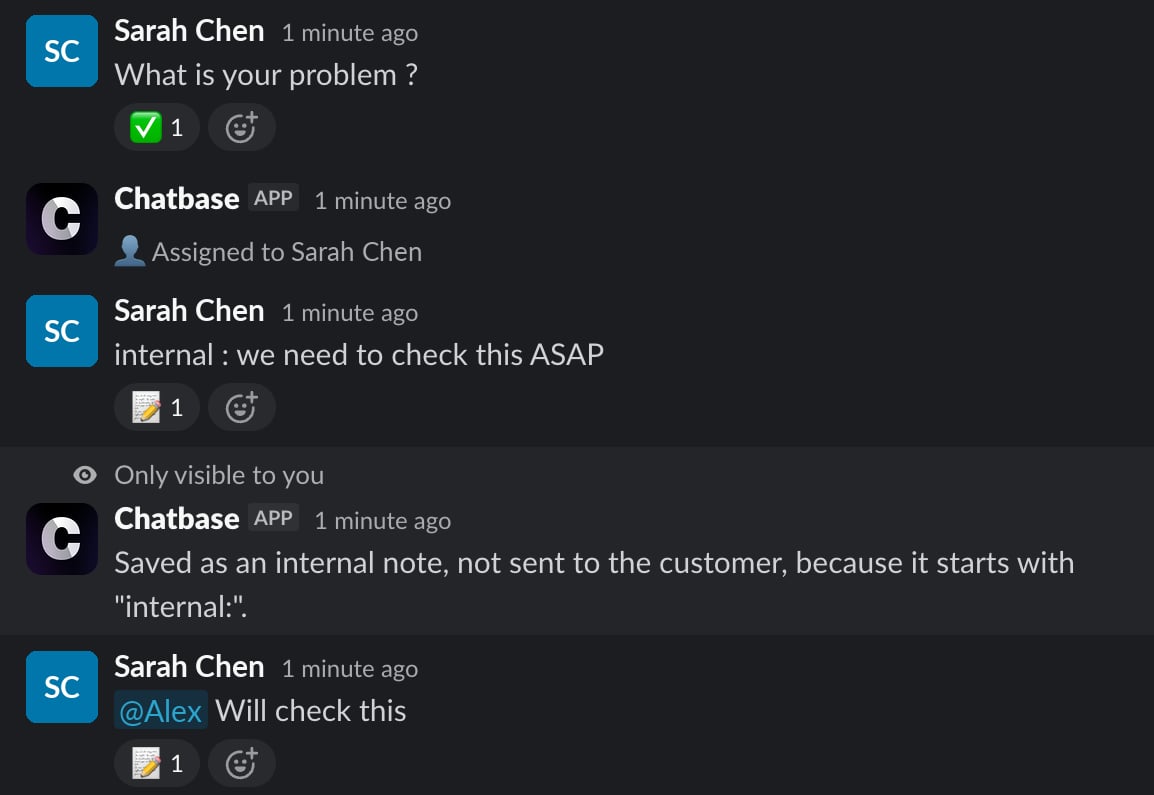
Slack ticket threads bring your helpdesk into Slack. When a new ticket matches a trigger, Chatbase posts a ticket card in the Slack channel you choose. The card’s thread then becomes a two-way link to the ticket:- Reply from Slack. A message in the thread is sent to the customer under your name, on the ticket’s channel (email, WhatsApp, chat bubble, and so on).
- Keep it internal. Mention a teammate, or start the message with
internal:, and it’s saved as an internal note instead. - Stay in sync. Customer messages, replies from the Chatbase helpdesk inbox, notes, and changes to status, assignee, or priority are all posted into the Slack thread as they happen.
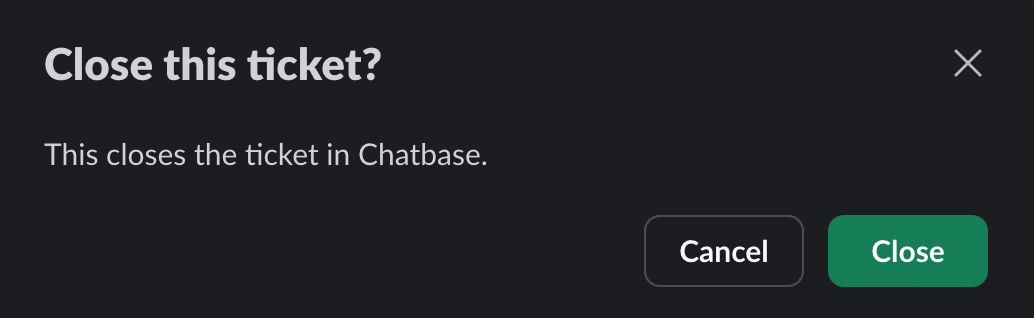
- Act from the card. Assign to me and Close buttons on the card update the ticket in Chatbase.
Before You Start
1
Helpdesk plan
Slack ticket threads need a plan that includes the helpdesk. If the plan is downgraded, cards stop being posted and existing threads stop syncing.
2
Connect Slack
Connect the Slack integration to your AI agent. The threads are posted in that workspace.
3
Use the same email in Slack and Chatbase
Chatbase identifies who wrote a Slack message by matching the email on their Slack profile to a member of your Chatbase account who can work on tickets for this AI agent. Teammates whose Slack email doesn’t match can read the thread, but their replies and button clicks are refused.
Set Up a Slack Thread Trigger
1
Create a trigger
Go to Settings → Helpdesk → Triggers and click New trigger. Give it a name, like “Post new tickets to #support”.
2
Run it on new tickets
Add the condition Ticket is Created. Start Slack thread only runs on new tickets, so the trigger can’t be saved without this condition. Add any other conditions to narrow it down - for example, Channel is any of Email or Team is Billing.
3
Add the Start Slack thread action
Click Add action and choose Start Slack thread under Slack.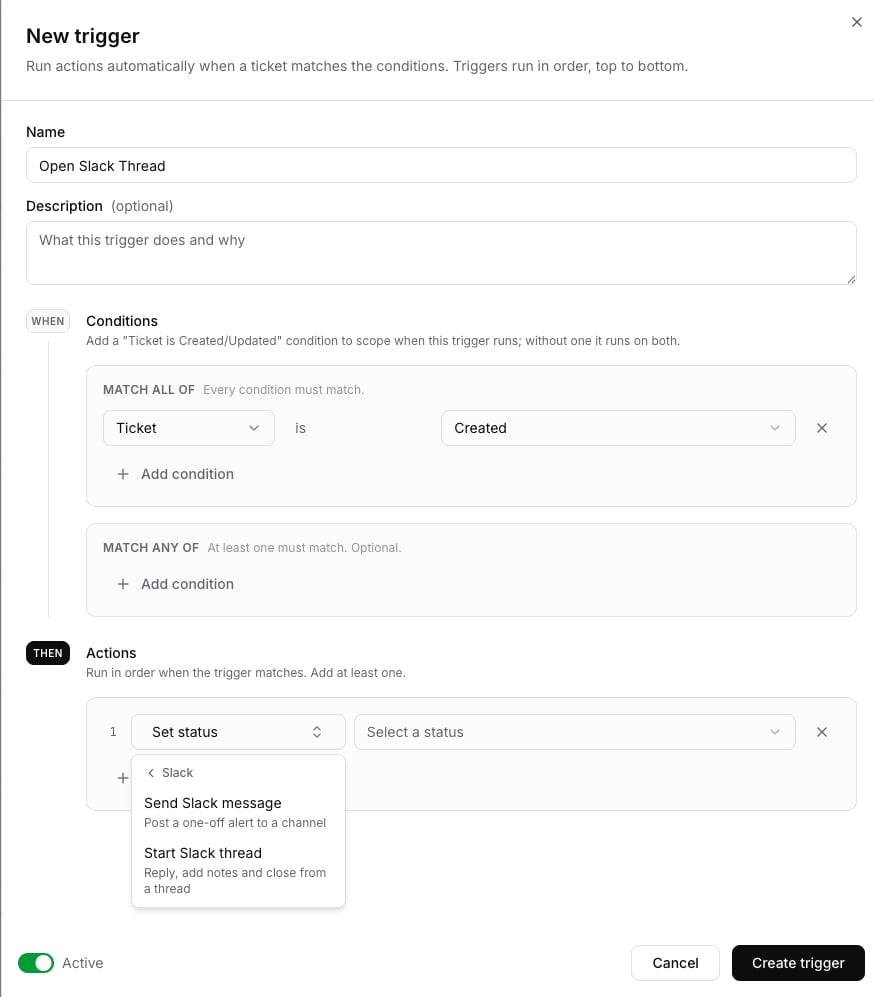
4
Pick a channel
Choose the channel the ticket cards are posted in. Chatbase has to be a member of that channel: run 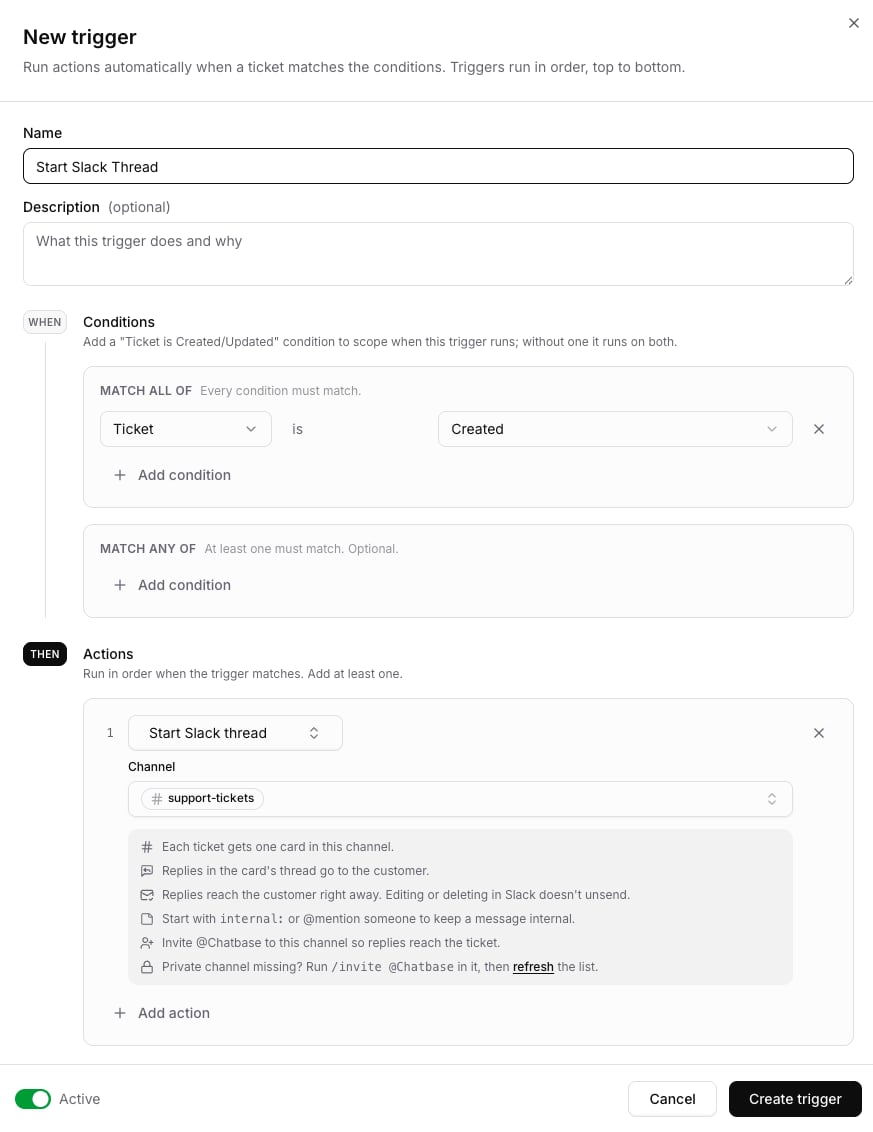
/invite @Chatbase in it. A private channel only shows up in the list after Chatbase is invited - invite it, then click refresh under the picker.5
Save
Make sure the trigger is Active and click Create trigger. The next ticket that matches gets a card in the channel.
A ticket has only one Slack thread. A trigger can have only one Start Slack thread action, and if several triggers match the same ticket, the first one to post wins.
Changing or pausing the trigger
Changes to the trigger only affect new tickets. Threads that are already open stay where they are and keep working normally.The Ticket Card
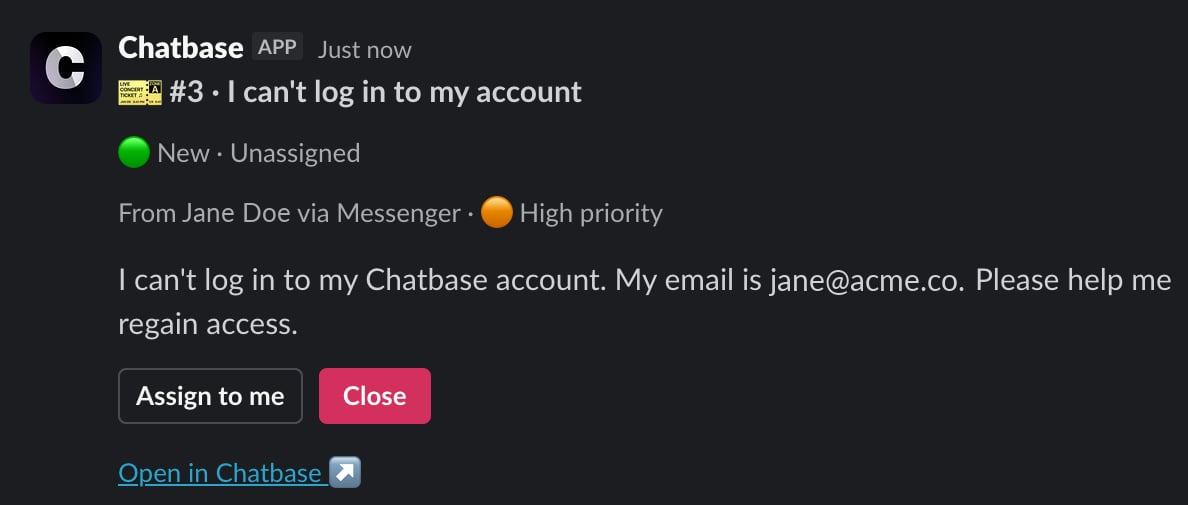
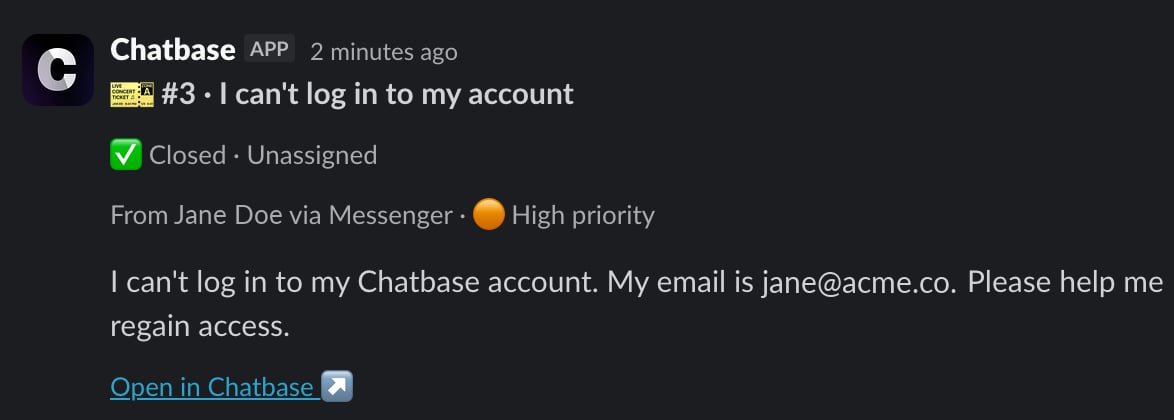
Each ticket’s card shows its current state and is updated whenever the ticket changes:- Ticket number and subject
- Status and assignee
- Requester, channel, and priority - for example, “From Jane Doe via Email · 🟠 High priority”
- The customer’s first message, shortened if it’s long
- Assign to me and Close buttons
- An Open in Chatbase link to the ticket in the inbox
Card buttons
There’s no reply after a click - the card itself updates to show the new assignee or status. Once a ticket is closed or cancelled, the card no longer shows buttons, and a ticket can’t be reopened from Slack. Reopen it from the inbox instead.
Replying From Slack
Write in the card’s thread to handle the ticket. Chatbase reacts to every message so you know how it was handled:✅ means Chatbase accepted your reply and sent it out, not that the customer received it. Delivery is confirmed later by the customer’s channel, and a failure can show up after the ✅. See When a reply isn’t delivered.
Reply or internal note?
Ask your AI agent
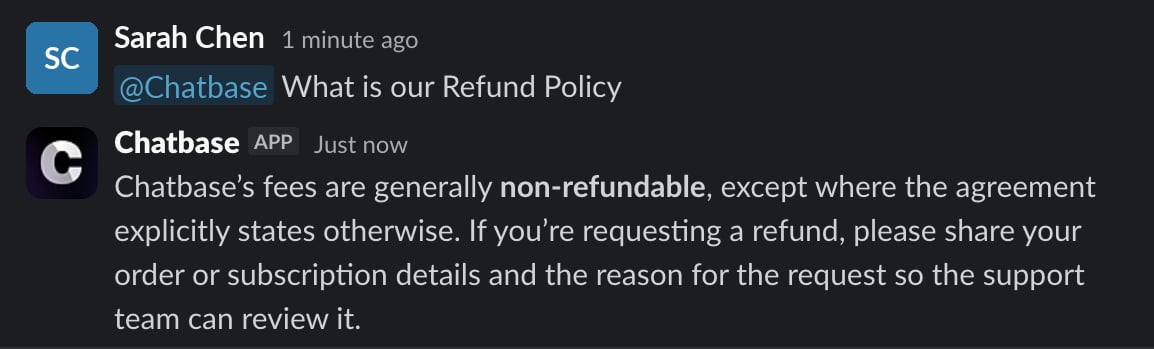
Mention @Chatbase in a ticket thread to ask your AI agent a question while you handle the ticket - for example, to check a policy or a product detail before you reply:@Chatbase what is our refund policy?The AI agent answers in the thread, using the same knowledge it uses with customers.
- Only your team sees it. The question and the answer stay in Slack. Neither is sent to the customer or saved on the ticket.
- It reads only your message. The AI agent doesn’t see the rest of the thread or the ticket, so include the details it needs in your question.
Files
Files you attach to a thread message are sent to the customer with your reply (or saved with your note). Files over the helpdesk size limit, or beyond the per-message file limit, aren’t sent - Chatbase tells you which ones were left out.In the Chatbase helpdesk inbox
Replies and notes from Slack appear on the ticket in the inbox under your name, with a via Slack tag.

When a reply isn’t sent
If Chatbase can’t send your reply at all, it marks the message with ⚠️ and tells you why in a message only you can see. Nothing reaches the customer. Common reasons: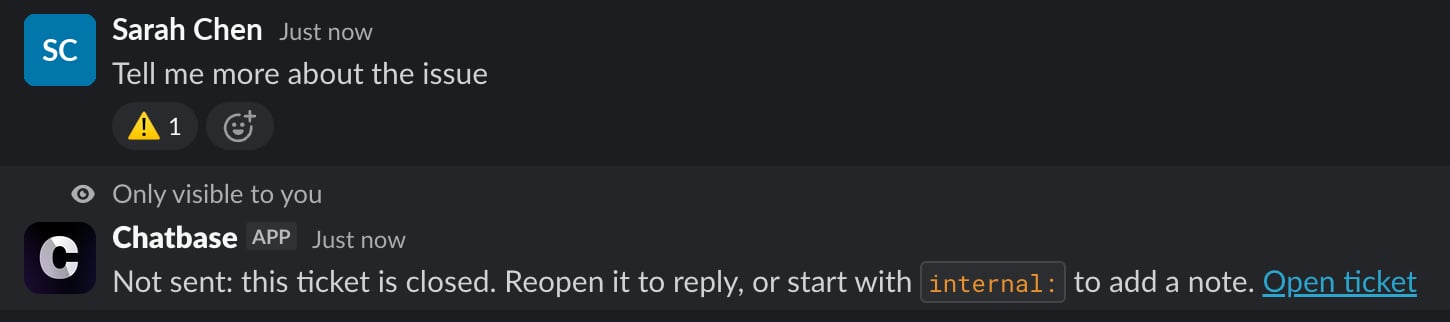
When a reply isn’t delivered
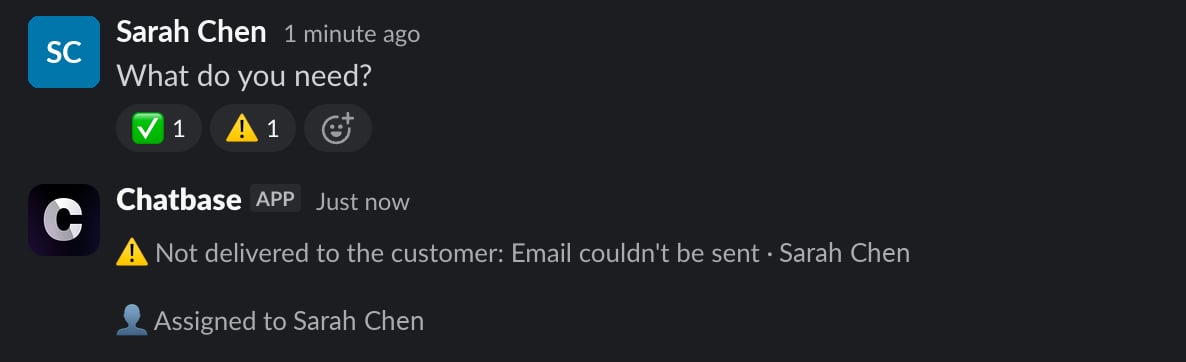
Some replies are sent but never arrive - an email bounces, or WhatsApp rejects the message. When the customer’s channel reports a failure like this, Chatbase tells you in the thread:- Your Slack message gets a ⚠️ reaction, next to its ✅.
- A ⚠️ Not delivered to the customer: reason message is posted in the thread with the name of whoever sent the reply, so the whole team sees it.
The failure is also shown on the message in the inbox. To try again, fix the cause (for example, correct the customer’s email address) and resend from the inbox or the thread.
What’s Posted to the Thread
Once a ticket has a thread, Chatbase keeps it up to date:
Troubleshooting
Needs attention
A trigger with a Start Slack thread action is flagged Needs attention in the triggers list when:- Slack was disconnected. Reconnect the same workspace and the badge clears - the trigger keeps its channel and there’s nothing to change. See If Slack is disconnected.
- Slack was reconnected to a different workspace. Open the trigger and select a channel in the new workspace.
- The channel was archived or deleted. Open the trigger and pick another channel.
- Chatbase isn’t a member of the channel. Run
/invite @Chatbasein the channel.

If Slack is disconnected
While the Slack integration is disconnected, ticket threads stop syncing in both directions:- Slack to Chatbase: nothing you write in a ticket thread reaches the ticket. Replies aren’t sent to the customer and notes aren’t saved.
- Chatbase to Slack: customer messages, inbox replies, notes, and ticket changes aren’t posted to the thread.
Common questions
No card was posted for a new ticket
No card was posted for a new ticket
Check that the trigger is Active, that it has the Ticket is Created condition, and that its other conditions match the ticket. Make sure Chatbase is a member of the channel, and that your plan includes the helpdesk. A ticket that’s already closed or cancelled by the time the card would post doesn’t get one.
My private channel isn't in the list
My private channel isn't in the list
Chatbase can only see private channels it’s been invited to. Run
/invite @Chatbase in the channel, then click refresh under the channel picker.A teammate's replies get ⚠️
A teammate's replies get ⚠️
Their Slack profile email has to match the email they use in Chatbase, and they need access to tickets for this AI agent.
The thread stopped updating
The thread stopped updating
If the channel is archived or deleted, or the card is deleted, the thread stops syncing. If Chatbase is removed from the channel, updates pause until it’s invited back. If Slack is disconnected, threads stop syncing until you reconnect the same workspace, and nothing from that time is synced (see If Slack is disconnected). The ticket itself isn’t affected, so keep working on it from the inbox.