

A mission can have up to 50 rules.
Add a rule
Click Add rule in the card.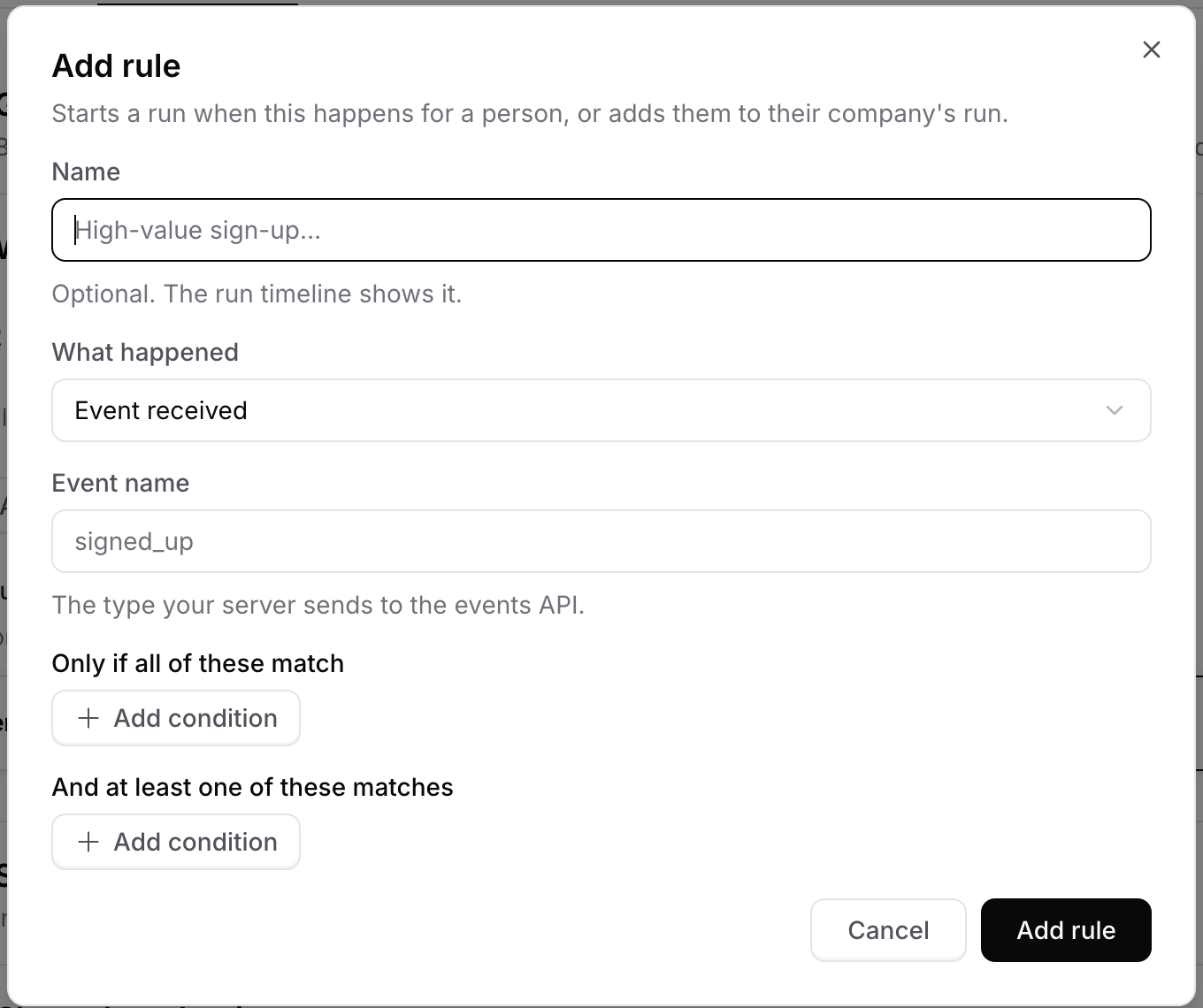
- Give it a Name if you like. The run timeline shows it.
- Pick What happened.
- For run and stop rules, pick what to do under Then.
- Add conditions if it should apply to some people only.
- Click Add rule, then Save changes.
What happened
A scheduled start rule checks your contacts and starts a run for each match, up to 500 at a time. People already in the mission are skipped. A scheduled run rule checks active runs instead, and skips runs waiting on you.
Then
- Start rules always start a run.
- Run rules can Check in now, Add to what the agent knows for its next check-in, Mark goal reached with an outcome, or Mark as failed.
- Stop rules can Hold the run until a teammate resumes it, or Stop the run.
Conditions
Conditions narrow who a rule applies to. Under Only if all of these match, every condition must be true. Under And at least one of these matches, one is enough. You can match a contact field, a custom attribute, work or personal email, an event property, what changed, or how long since the last activity. For example, a start rule on Contact created with Email type is Work and company_size is more than 50 only starts runs for work emails at bigger companies.How replies wake a run
Your AI agent answers every reply right away. Chatbase then decides if the reply should wake the mission agent now, or wait for its next check-in. Questions, answers, a proposed time, a new person brought in, a complaint, or a request to stop wake it. Out-of-office replies and “I’ll get back to you” wait. The run timeline shows which one happened and why.Send events to Chatbase
Event rules need your product to send the event. Click How to send this event on the rule for ready-to-copy code.From your site
CallsendEvent on a page with the Chatbase embed script:
- Names can use letters, numbers,
_,., and-, up to 100 characters. - Properties are optional, up to 8 KB. Add anything the agent should know, like the plan.
- Each visitor can send 60 events a minute.
window.chatbase('sendEvent', 'trial_started', { plan: 'pro' }, { idempotencyKey: 'trial-123' }).
From your server
Use API v2 when your backend knows first, or when the person isn’t on your site. Authenticate with an API key from Workspace settings > API keys. A scoped key needs theevents:write permission.
A successful call returns
202 with the event id. It returns 404 when the run doesn’t exist or your plan doesn’t include Missions, 409 when the run already ended, and 429 when you send too fast.
Use run_id to steer a run you already know about, for example to end it when a payment clears in your billing system.